 Nuvi
NuviListen to the lecture, read it afterwards
Record a class you are allowed to record, then get a transcript, a summary of the key points and a way to ask what was said about a topic.
Nuvi, the AI note taker for iPhone, iPad and Apple Watch by Ege Beşe, records a lecture or seminar and returns a transcript, a summary with key points and a way to ask questions about what was said. Before anything else: record a class only when you are allowed to.
The problem with lecture notes
You cannot write and listen at the same speed. While you copy down one definition, the lecturer has moved to the example that explains it, and that example is the part you needed. By the end of the hour the notes have gaps you can see and gaps you cannot.
A plain audio recording does not fix this. Nobody has time to sit through the whole lecture a second time, and finding the two minutes about one concept means dragging a playhead back and forth. What helps is text you can read, skim and question.
What Nuvi gives you after class
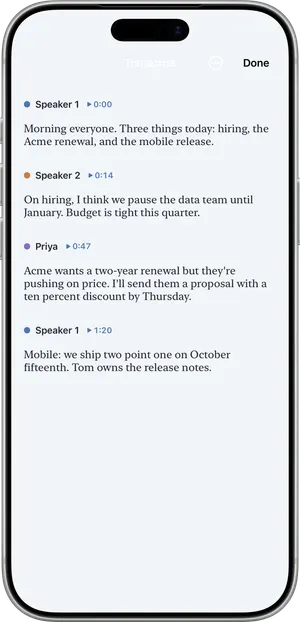
- A transcript. The lecture as text, with speakers separated, so a question from the audience does not blur into the lecturer’s answer.
- A summary. An overview and the key points, written in the language that was spoken.
- Custom vocabulary. Add the names and terms of your course so they are heard correctly. Free keeps 10 words, Pro up to 100.
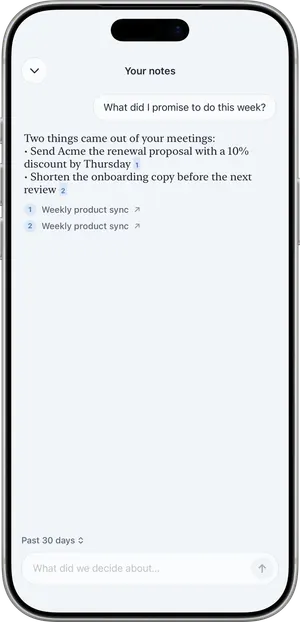
- Ask. Ask what the lecturer said about a topic and get an answer that cites the note it came from. With Pro, ask across every lecture you have recorded.
- To-dos. If the lecturer says the problem set is due next Tuesday, that can appear as an action item with its due date, and it lands in your to-do list.
A seminar, step by step
Picture a 50-minute seminar on the history of science, with a lecturer and a dozen students.
- Before class you check the course policy on recording and ask the lecturer. She agrees to a recording for your own study.
- You add a few names from the reading list to custom vocabulary, so they are less likely to be misheard.
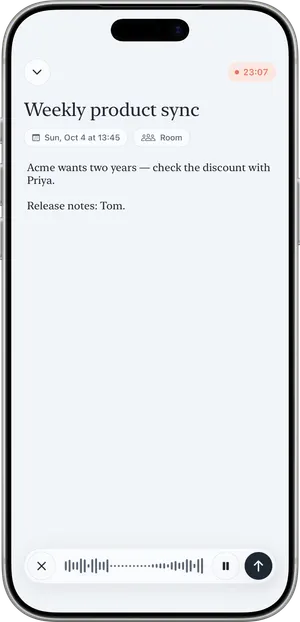
- You sit near the front, set the microphone mode to Room and tap Record. On an iPad the app works the same way.
- You lock the screen and keep listening. Recording continues, and a Live Activity shows it is running.
- When the seminar finishes you tap End. Nuvi shows Recorded, Uploaded, Transcribed, Writing summary.
- Nuvi asks “Which one is you?” because you asked a question during the discussion. You pick your voice, and you name the lecturer.
- You read the summary to see the main argument, then read the transcript for the part you missed.
- One historian’s name is spelled wrong. You use Fix a word… once. Every place in the note is corrected, and later recordings are fixed automatically.
- A week later, while revising, you use Ask: “What were the three causes she gave?” The answer cites this note.
What it does not do
- A full lecture needs Pro. The free plan transcribes the first 10 minutes of each recording, up to 30 minutes a month. That is enough to try it, not enough for a course.
- One hour per recording. The recording stops automatically at one hour. A longer class means starting a second recording.
- It does not capture slides or the whiteboard. Nuvi records sound only.
- It does not join online classes. Nuvi does not join Zoom, Google Meet or Microsoft Teams. You can import an audio file, or a video with sound, from Files (up to 60 minutes), if you are allowed to have that file.
- It can mishear. Transcripts are AI output and can be wrong or incomplete, especially with technical terms and a distant voice. Check anything you plan to quote in an exam answer or an essay against the recording and your reading.
- iPhone and iPad only. There is no Android, Mac, Windows or web app.
Permission comes first
Recording other people may require their consent depending on where you are, and your institution may have its own policy on recording classes. Ask the instructor before you record, follow the policy, and keep the recording for your own study unless you were told otherwise. For the general picture see Is it legal to record a meeting?. It is general information, not legal advice.
What it costs for students
Free lets you see how Nuvi handles your lecturer’s voice and your subject’s vocabulary: the first 10 minutes of each recording, 30 minutes a month. For whole lectures you need Nuvi Pro, which transcribes up to 60 minutes per recording with no monthly limit (fair use). US prices are $4.99 a week, $14.99 a month or $49.99 a year, with a free trial where available. See pricing.
Related pages
- How to record lectures
- Multilingual transcription with Whisper
- Voice memos and ideas, for study notes spoken out loud
- All features
Recording other people may require their consent depending on where you are. Tell people before you record.
Questions
Can I record a full lecture with the free plan?
You can record it, but the free plan transcribes only the first 10 minutes of each recording, up to 30 minutes a month. The recording itself is still saved on the device. To get a whole lecture transcribed and summarized you need Nuvi Pro, which transcribes up to 60 minutes per recording.
What happens if the lecture is longer than an hour?
A recording stops automatically at one hour. For a 90-minute class you start a second recording when the first one ends, and you get two notes. With Nuvi Pro you can ask a question across all your notes, so both halves of the lecture can be searched together.
Am I allowed to record a lecture?
That depends on your institution, your instructor and where you are. Your school may have a policy on recording classes, and recording other people may require their consent. Ask the instructor before you record and follow the policy. If you have an accommodation that covers recording, your disability services office can tell you how it applies. This is not legal advice.
Does it work without Wi-Fi in a lecture hall?
Recording works without a connection. The recording is saved on the device and the app shows that it is waiting for a connection. Transcription and the summary run on servers, so they arrive once the phone or iPad is online again. Nothing is transcribed on the device itself.
Which languages can it transcribe?
Transcription and summaries work in many languages, including English, Spanish, French, German, Italian, Portuguese, Dutch, Turkish, Polish, Japanese, Korean and Chinese. Nuvi detects the language by itself, and you can pin one under Settings, Spoken language. Quality is not equal for every language, and the app interface is English only.
Tap Record. Read it later.
The transcript, the summary and the to-dos are part of the free plan.
